Vibe Coding vs AI Coding - This article is part of a series.
As mentioned in Drumming in Retirement, lately I’ve been consumed with playing my e-drums, to the point that I’ve neglected other pursuits like coding projects. A minor technical annoyance I ran into while playing and recording my drums motivated me to put down the drumsticks for a while and build a software solution, which I vibe-coded and wrote up here. The problem itself is extremely niche and probably of interest to only a handful of people on the planet, but the journey was worth writing about. It also led me to a few thoughts on producing code with AI, which I wrote up in the next posts in this series.
Background and Problem Description
I almost didn’t write this post because I dreaded writing this section. The issue that motivated this effort is hard to describe because it’s specific to a particular setup involving two music production packages I use. But here goes:
Essentially I needed a file converter app that produced a drum map file from a PDF file.
When I record my e-drums, I use Cubase and EZ Drummer 3. As mentioned in a previous post on e-drumming, when I hit drums or cymbals on my e-drums, those hits are converted into MIDI notes, which is what Cubase records and plays back. When Cubase records a MIDI note, it remembers the MIDI value (a number), the note start and end times, and its volume - it does not remember the type of sound being produced (e.g., it could be a piano note, a drum hit, or a violin note). So any sound can be mapped to any MIDI note value. EZ Drummer’s role is to convert those MIDI note values into actual drum sounds. For example, during playback, a recorded MIDI note with a value of 36, which corresponds to a musical note C1 (C on the first octave of a piano keyboard)1, is interpreted as a kick drum hit by EZ Drummer, so it produces a particular kick sound. Of course, EZ Drummer lets you choose exactly which kick drum sound from among many corresponds to that C1 note.
Within Cubase, after I have recorded a MIDI drum track, it can be displayed and edited in a piano roll display, which is a timeline showing which MIDI notes occurred when. Each drum or cymbal gets a horizontal lane that has a marker at the precise time that that particular drum was hit. Since MIDI is also (actually primarily) used to record musical keyboard key presses, the default display of this piano roll is one that makes good sense for recorded piano keyboard key presses:
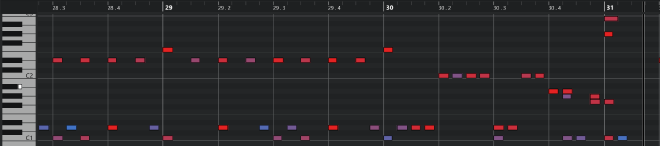
However, the MIDI notes shown above were recorded from me hitting drums; they did not come from pressing keys on a piano keyboard (although they could have - there are some amazing finger-drummers out there). The musical note names and the piano keyboard depiction are not really helpful for showing which drums were hit, or what drum sound will be produced when each MIDI note is played back.
So Cubase has the concept of drum maps, which map MIDI notes to drum names (among other things). A drum map within Cubase might look like this:
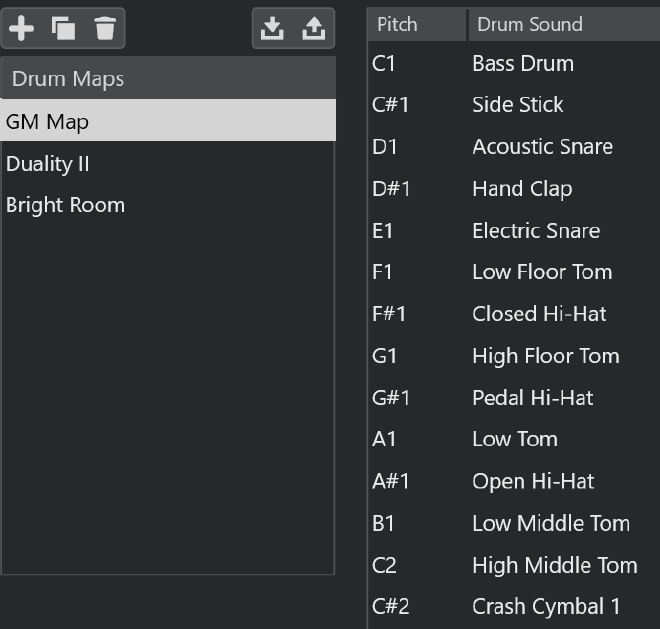
You can build a drum map manually within Cubase, or load one from an XML file that by convention has a .drm file extension. Once loaded, drum maps can be applied to a drum track in Cubase. That allows the piano roll display for that track to show something that is more appropriate for drums2:
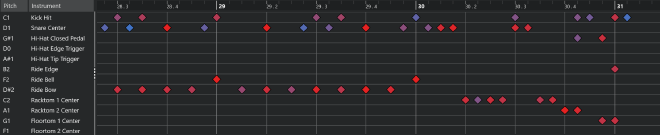
That sequence of drumming sounds like this:
Once the proper drum map is applied, it becomes much easier to edit away mistakes in the recorded drum hits. That, along with quantization (which corrects slightly off-time hits so they land on beat boundaries), is something I rely on heavily when recording a drum part to a song. It also lets me correct issues that happen if I switch to an EZ Drummer kit different from the one I used (and heard) while making the recording. Different drum kits can map MIDI notes to different sounds - e.g. a crash cymbal hit may become a ride cymbal hit in the mapping for the new kit. Having the drum map makes those corrections straightforward.
While Cubase has features to easily produce drum maps from its ’native’ drum software called Groove Agent, unfortunately EZ Drummer does not have an easy way to produce Cubase drum maps for its drum kits. This is probably because EZ Drummer is designed to work with any DAW, not just Cubase, and the Cubase .drm file format is specific to Cubase. But what EZ Drummer can do is to export a graphical depiction of how drums are mapped to MIDI values into a single page PDF file that looks like this:
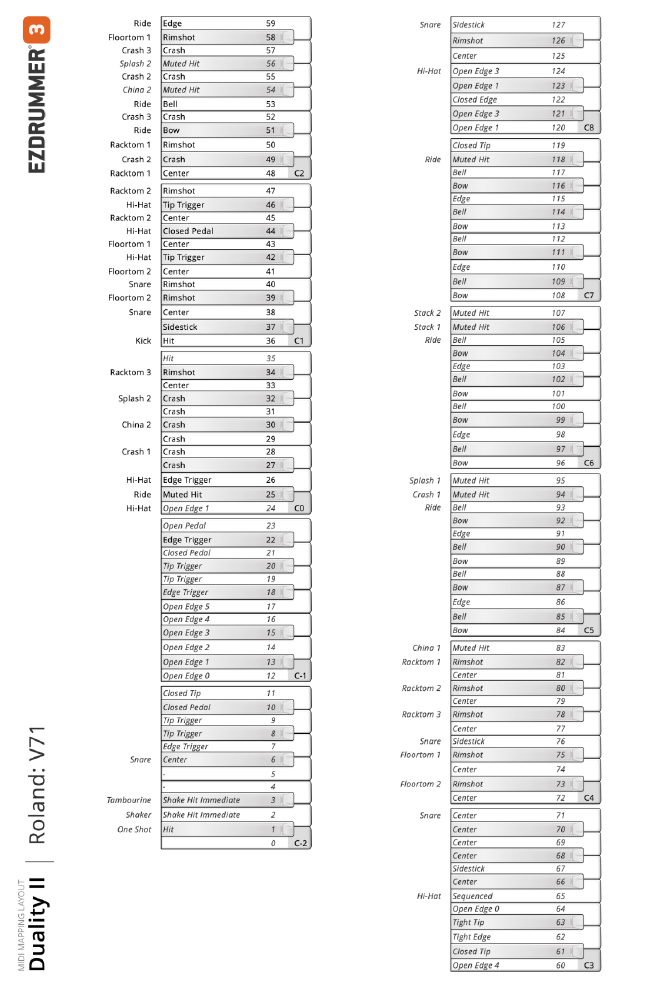
This mapping is different for each drum kit within EZ Drummer3, and EZ Drummer has dozens of kits available, including paid expansions.
So, at long last, the problem statement: I wanted a way to convert the graphical drum map PDF exported from EZ Drummer into a Cubase-compatible .drm XML file for the many EZ Drummer kits I have. Then I could load the .drm files into my Cubase projects and see sensible drum names in the piano roll display.
The Solution
The first thing I tried was just to copy and paste text from the PDF file. That did not work because, unfortunately, the PDF produced from EZ Drummer does not contain any text; it is just an image. Therefore, extracting the necessary information from the PDF would involve OCR (Optical Character Recognition).
After I realized this, just on a lark, I asked ChatGPT to read a drum map PDF file produced by EZ Drummer and convert it into a Cubase .drm file, fully expecting it not to work. It didn’t, but after a few prompt-refinement steps, it got surprisingly far. Far enough that I thought it might be possible to use AI to help solve this problem.
I didn’t want to have to ask AI to convert each drum map PDF to a .drm file from scratch every time. So I asked AI (GPT-5.4 within VS Code) to build a Python app to convert the files. It immediately understood what I wanted. It quickly realized from the example PDFs I provided that OCR would be required, and suggested an open-source OCR package called Tesseract, which I ended up using.
In addition to example input PDF files and example output .drm files, I provided AI with a general outline of the software design, at this level:
-
Extract the two parts of the piano keyboard image from the PDF and join them seamlessly together into a single long piano keyboard image that is to be used for the rest of the processing.
-
Perform image segmentation to dynamically find the rows and columns where the outside-the-keyboard text, the inside-the-keyboard text, and the MIDI note values could be found in the combined keyboard image.
-
Perform OCR on the extracted segments individually to get the drum names and MIDI values, store the information in an internal map between MIDI value and drum/cymbal names.
-
Heuristically correct the extracted drum names and MIDI numbers, to cope with inconsistent terminology and OCR failures.
-
Use the corrected data in the internal map to dump out the .drm file in proper XML format.
I probably spent the equivalent of a full workday of prompting, re-prompting, and manual code tweaking to get to the finished app, but spread out over several days because hey, I’m retired.
One of the trickiest aspects of the app was to get the segmentation to work properly to find the bounding box of each entry, such that the OCR code could be fed a nice clean image of each number or text string that needed to be converted. The AI wanted to just hardcode the column widths and calculate the row starting positions mathematically, but this proved to be inadequate because of slight variations in the different PDF images that the app had to handle. So, at my behest, AI generated code that instead looked for vertical and horizontal lines in the image, and based the segmentation on those lines, dynamically on a PDF-by-PDF basis. I instructed AI to add code that would dump out an image of the segmentation it found as a QC step; here is a portion of a typical one:
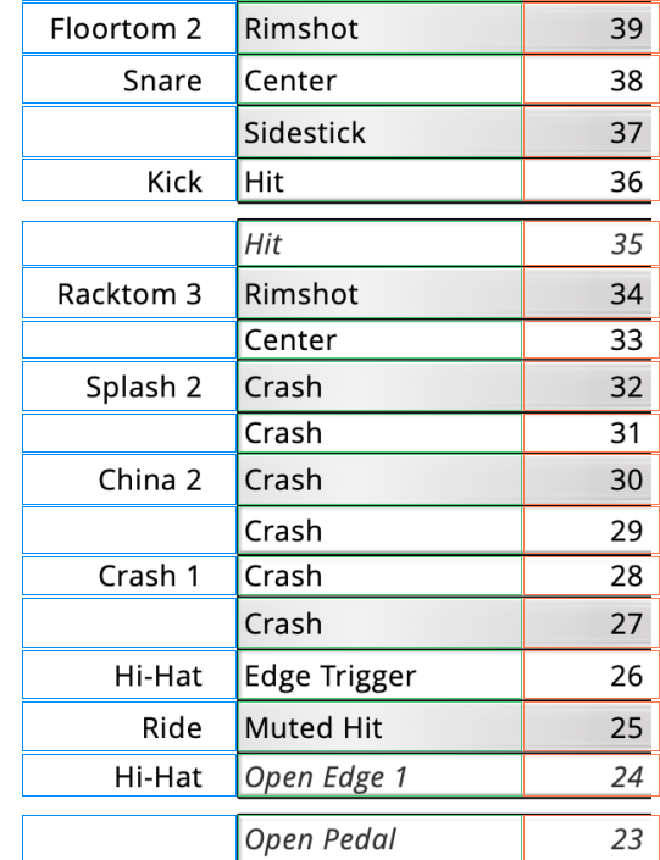
The blue, green and red boxes are the segmentation boundaries. At one point, the AI suggested and completely implemented a step of doing some image pre-processing on each segmented image before handing it to the OCR, to cope with the fact that the background was a different color depending on whether the text or number was superimposed on a black or white key within the piano keyboard image. This was a big win to improve OCR quality.
The next hurdle was that, even with nice clean pre-processed image segments, the Tesseract OCR sometimes failed. Failures in extracting the MIDI values were especially problematic since the internal data map was keyed on MIDI values. Besides some understandable failures of confusing 1s and 7s, sometimes it just completely whiffed for no apparent reason, e.g. it failed to recognize this obvious number:

A ‘fallback’ mechanism had to be introduced where, if the extraction didn’t produce a reasonable MIDI value for a row, an expected value (based on which row it came from) was used instead.4 And in text names, OCR would sometimes mistake lowercase ’l’ for ‘i’, and would routinely miss spaces between words. This was handled by a series of heuristic corrections like: replace ‘OpenPedal’ with ‘Open Pedal’.
Another thing that AI figured out on its own and implemented flawlessly was that blanks in the outside-the-keyboard names needed to be filled in by ‘carrying down’ the previous values in that field. That is, in the original PDF it did not repeat the drum name ‘Snare’ for each row where different types of snare drum hits (rim shots, center hits, etc) were listed, the previous outside-the-keyboard entry of ‘Snare’ was assumed to apply. This is something that is obvious to humans looking at the PDF, but potentially not obvious to software trying to understand it, so I was pleased that AI immediately caught on to this.
As often happens, the need for another feature became clear during development. The Cubase drum maps also control the vertical order in which the horizontal ’lanes’ appear in the piano roll. Originally, the .drm file produced by the app was ordered only by MIDI value. This meant that the commonly used MIDI values (e.g., the kick drum is essentially always present and almost always has the MIDI value of 36, while the snare usually has value 38)5 were scattered throughout the drum map. It is more user-friendly to sort the drum map according to instrument type - kicks first, then snares, then hi-hats, ride cymbals, toms, crash cymbals, etc. And within instruments, sorting by different kinds of hits was nicer, e.g., putting all drum center hits before rimshots. This ordering of the drum map worked better to make the piano roll display in Cubase more intuitive for me, but this is subjective and by no means a standard. I told AI to tweak the sorting several times with prompts like “now sort the crash cymbals before the splash cymbals,” and it did a very good job of adjusting the sorting code to cope with my requests - something that wasn’t very complicated algorithmically but would be tedious for a human to do.
The .drm output XML file consists of several sections, much of which is somewhat verbose boilerplate text. Most of the file consists of entries for each drum that look something like this:
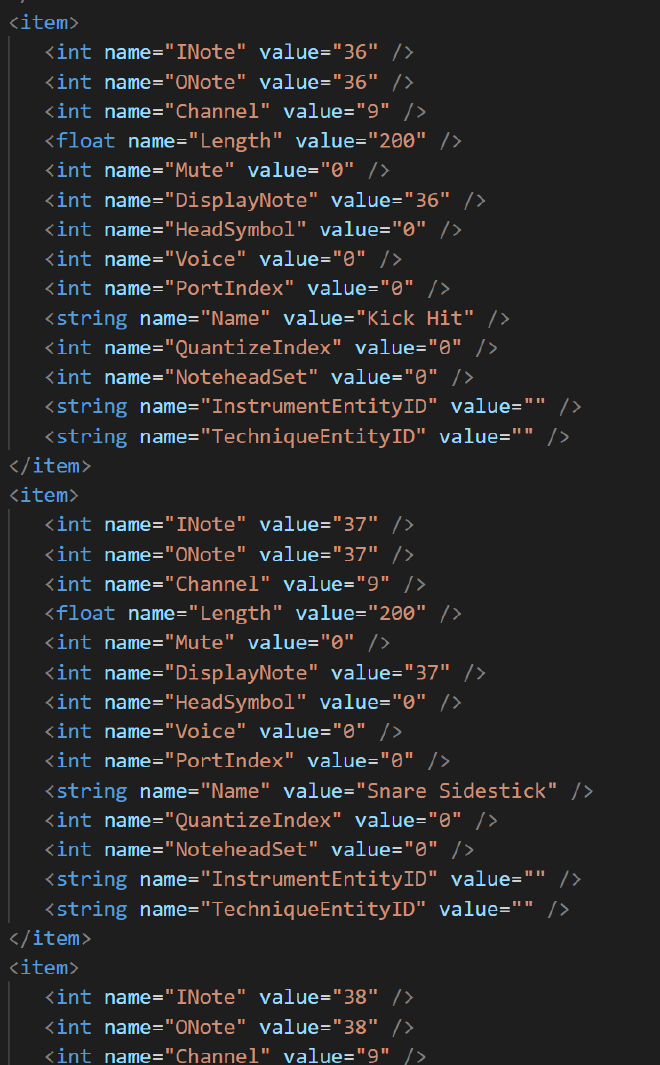
AI produced the code to dump out this .drm format, given only example .drm files, and it worked the first time perfectly - I didn’t have to tweak that code at all. Again, this is the kind of thing that is not conceptually or algorithmically difficult, it is just tedious to code, but AI nailed it.
A key to the success of this endeavor was having the app dump out a series of QC output files besides the final .drm output. This included the combined and segmented keyboard image, a table of the raw values returned by OCR for each segment, and a cleaned and sorted text-only table of the extracted drum map before it was converted into the awkward XML format of the .drm file:
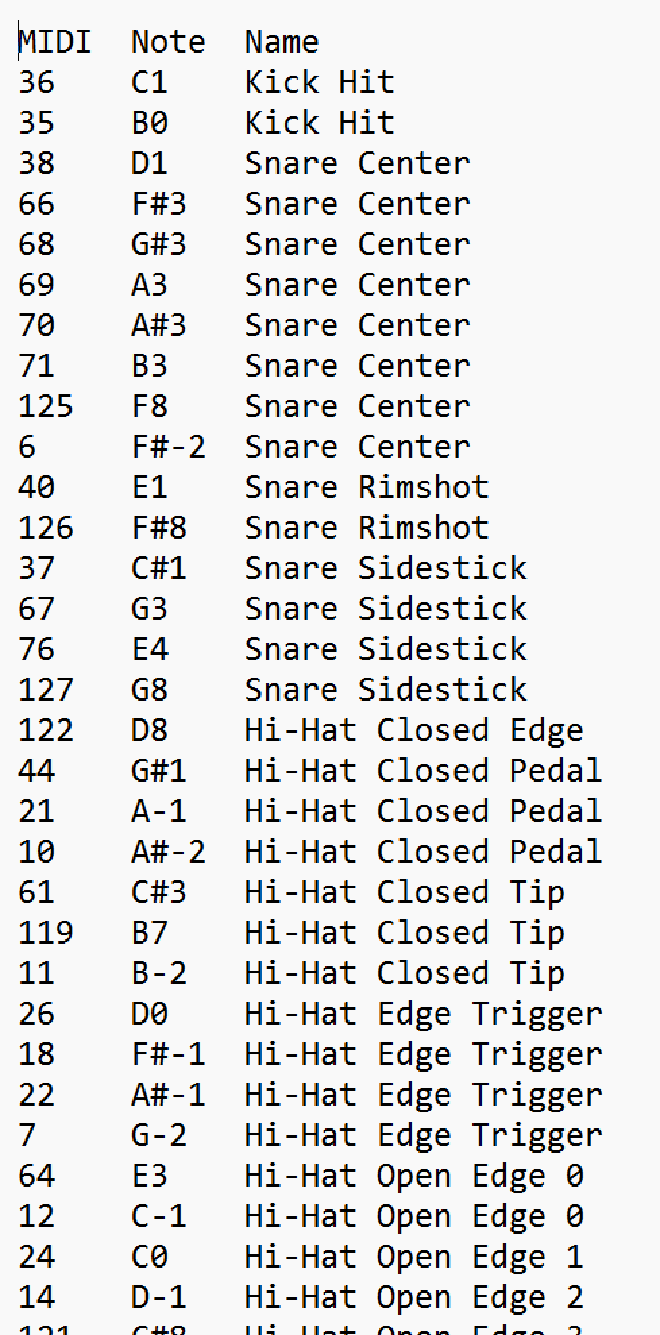
This really helped during debugging, and the AI was actually able to use the QC files to find problems and verify changes that it made to the code.
Summary
So after running the vibe-coded app, I now have quality drum map files for all of the drum kits that I might use in my recorded music. Truth be told, I probably could have manually created the drum maps in about the same amount of time, but vibe coding an app to do it was way more interesting. Plus I will be able to easily produce new .drm files for any new drum kits that I purchase for EZ Drummer.
If it weren’t for AI and vibe coding, I would never have undertaken this software project. Once I realized that the PDF files from EZ Drummer did not contain any text that could be copied and pasted, I would have just given up and made the drum maps manually within Cubase. Writing an app that grabs images from a PDF, rearranges them, then visually ‘parses’ them much like a human would, and then creates output files in a particular XML format is not a trivial undertaking. If I were to write this app without AI, I would eventually have gotten it to work, but it would have taken long enough that I would have deemed it not worth doing.
It is both empowering and demoralizing (speaking as a career software person) that AI coding has progressed to the point where it can, with proper guidance, produce fairly sophisticated software for tasks like this.
The next post in this series expands on these thoughts.
-
There is ambiguity in MIDI note names across the industry; they may be off by one octave because sometimes the first octave is numbered as 0, sometimes as 1. What matters is the MIDI value (e.g. 36), not the note name (e.g. C1 or C0). ↩︎
-
I guess it is no longer a piano roll, it’s a drum roll. Ba dum tish! ↩︎
-
Actually it is more complicated. EZ Drummer has ‘sound expansion’ modules with names like ‘Bright Room’ (for drums recorded in a room that emphasizes higher frequencies) or ‘Progressive’ (for drum sounds useful for progressive rock). These sound expansion modules define the maps of MIDI values to what I’ll call ‘drum slots’ — holders where different drum sounds can be slotted in. The modules also provide the recorded drum sounds that can fill those slots. Within each sound expansion module are several predefined drum kits that have specific drum/cymbal sounds assigned to the slots, along with other settings to provide a ’themed’ drum kit, e.g. a ‘Meat and Potatoes’ drum kit with fat, chunky drum sounds. The MIDI map PDFs from EZ Drummer are specific to the sound expansion module, not the selected drum kit — i.e. the MIDI map will be the same for all drum kits within a given sound expansion module. But I’ll just refer to the MIDI map PDF files as showing the mapping for a drum kit. The mapping also depends on how EZ Drummer has been set up to interface with your e-drums. This is why my e-drum hardware setting ‘Roland V71’ appears in the PDF file along with the sound expansion module name. ↩︎
-
In hindsight, I probably didn’t need to do OCR on the MIDI number at all, as I think all the PDFs produced by EZ Drummer always include all MIDI values between 0 (?) and 127, in order. The software could just assume the value at the top of the piano keyboard image was always 127 and that MIDI values/keys are never skipped. But, I didn’t know this to be true at the time (and I’m still not entirely sure it is universally true for all possible EZ Drummer drum kits), and doing the OCR on the MIDI values was an interesting check on the OCR quality. ↩︎
-
In the industry, there is a standard known as ‘General MIDI’ (GM) that assigns common instruments including drums to standard MIDI values. General MIDI assigns the kick and snare drums to values 36 and 38. In EZ Drummer, the MIDI mapping is always done to be compatible with General MIDI (e.g. value 36 is always a kick drum of some sort), but EZ Drummer drum kits can have many more drums and cymbals than what General MIDI covers. There is no standard for how these additional instruments should be mapped to MIDI; every vendor seems to do it differently. ↩︎